![Logo Negativo-4.png]](https://help.ifreturns.com/hs-fs/hubfs/Logo%20Negativo-4.png?height=40&name=Logo%20Negativo-4.png)
Here is a step by step guide:
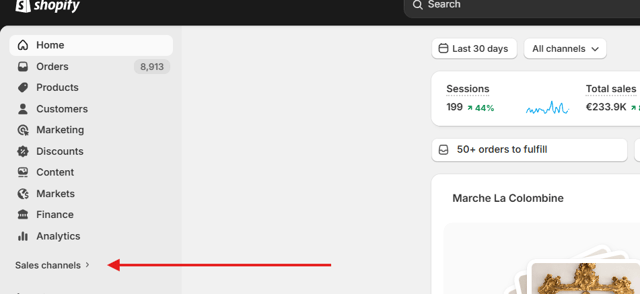
1. Go to Shopify -> and click on "Sales channels"
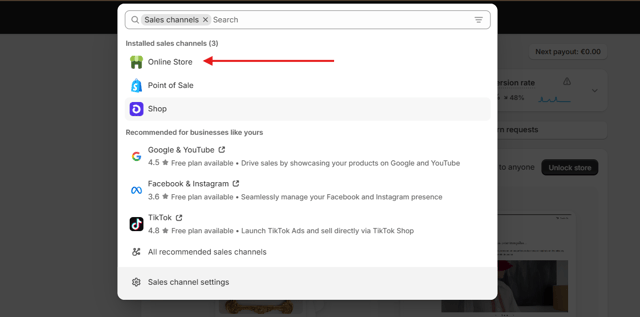
2. Once you click on "Sales channels" you will see a pop-up window -> click on "Online Store"
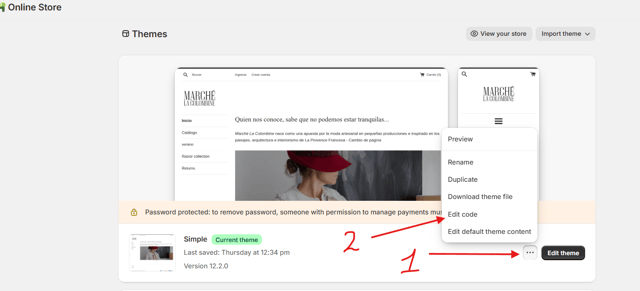
3. Once you click you will see an "Online Store" page:
- Click on three dots (1)
- Then click on "Edit code" (2)
4. On the left side bar find a folder called "snippets" -> click on the folder
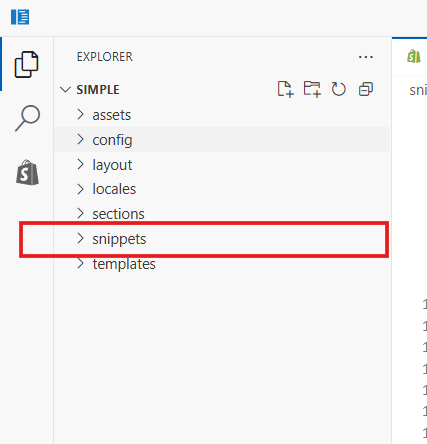
5. When you click on "snippets" the folder will open. The next step is to create a snippet file. Click on the "File Icon" called "New File.."
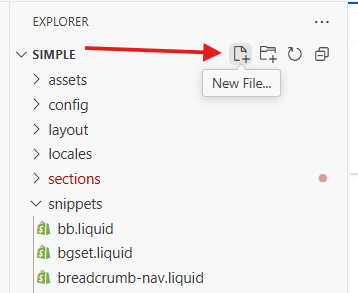
6. Put a name “ifreturns-product-sizing-bar.liquid”

To get the code of the file you need to contact Account Manager.
7. Once you get the code paste it into the file and click on "save" button

8. Next step if to find a Product Description Page template. Go to "sections" to localize it
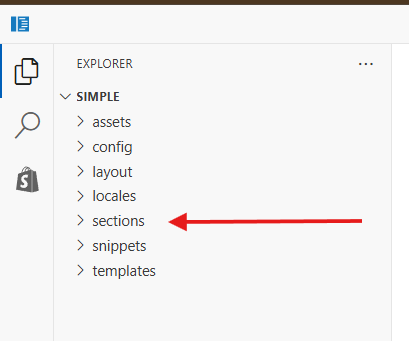
9. Once you find your Product Description Page template, paste this code line where you need:

10. On the top of template click on "Save" to apply new changes

If everything is set up correctly you will see a product sizing section on the Product Description Page of the website
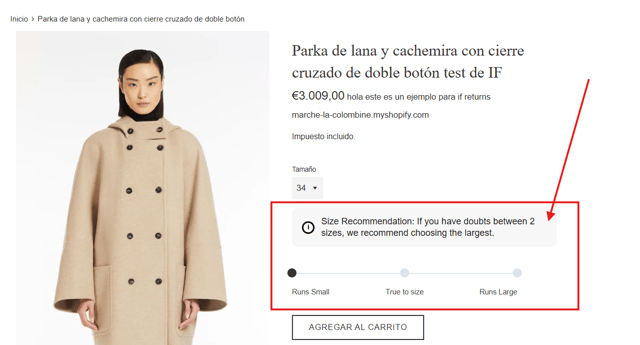
it is possible to customize the widget by changing background color, text color, bar-line color etc. Check the widget code to know what can be changed.